



My UNHCR Portal
The portal provides an online tool offering multiple services for refugees registered with UNHCR in Egypt.
Please note that this portal can only be accessed using a mobile phone or tablet. It is not supported on desktop or laptop computers.
Through the electronic portal, you can:
- Renew your card / Self-verification
- Change the phone number registered with UNHCR
- View and print residency appointment information
- Book residency appointments to issue or renew your residency permit
To access the digital portal, click the following button.
To use MyUNHCR portal, you must first log in and complete self‑verification of your identity and that of your family members registered in the case file, by following the steps outlined below:
Logging into My UNHCR Portal
- Click the link shown at the top of the page.
- Select your language from the list (Arabic or English).
- Click on “Services” on the home page.
- Select “Face Recognition” to log in.
- Read UNHCR’s privacy notice, then click “I Agree” at the bottom of the page.
- Enter your UNHCR case number, then click “Verify.”
- Click “Allow” to enable the camera to take a photo of your face, then hold the phone steadily for 3 seconds to capture the image. Please ensure that the photo meets the standards listed below. Choose “Use this photo” or “Retake.”
- If the photo is successfully captured, the message “Identity verification successful” will appear, and you will be redirected to the home page.
- If verification fails, the message “Identity verification failed” will appear. You may try several times. If verification continues to fail, please visit UNHCR Reception Centre at: 17 Mecca El-Mokarrama Street, Seventh District, 6th of October City.
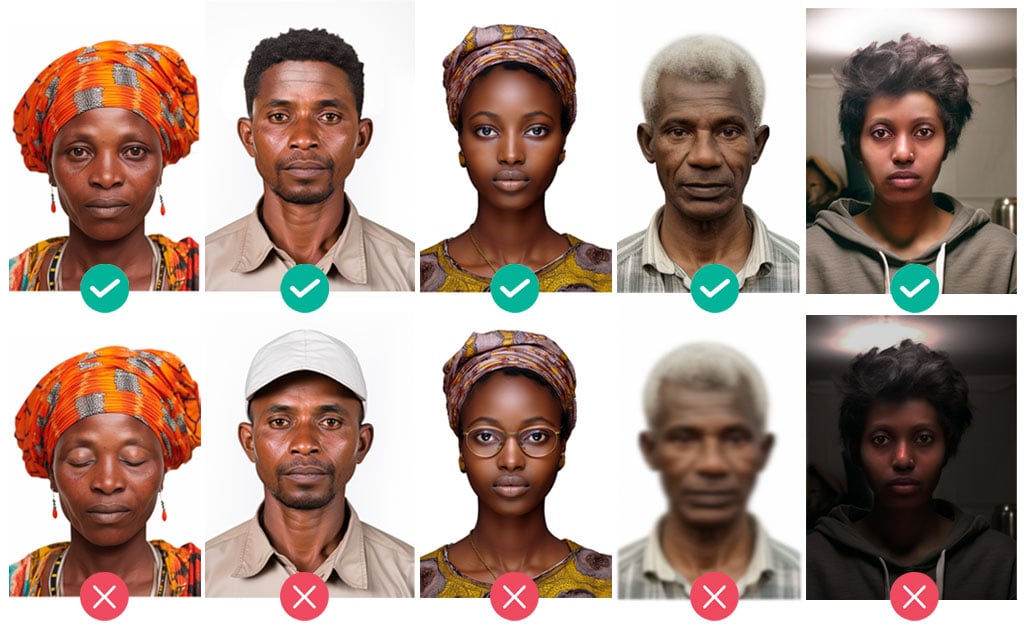
To ensure a successful photo capture, please make sure that:
- The camera is held straight and facing your face
- Your full face is clearly visible
- Your eyes are open and looking directly at the camera
- You are not wearing a hat or glasses (headscarves are allowed)
- The image is not blurry
- Your face is in a well‑lit area
- The background is clear and free of details
- No other people are visible in the background
- You hold the phone steady for 3 seconds until the photo is captured automatically
Renewing Your UNHCR Card
If your white / yellow / blue UNHCR card has expired and there are no changes to be made (such as adding a family member), you can renew your card through the portal without visiting the office.
UNHCR will send you an SMS within 7 days containing the date and location for collecting your renewed card.
Please note that this service is only available at the beginning of the month in which the card expires.
Example: If your card expires on 17 March, you can only use the portal for renewal starting 1 March.
To renew your card, follow the steps below:
- Log in to the portal as described above.
- Complete self‑verification for yourself and all family members aged 12 years and above.
- Once verification is complete, UNHCR will send an SMS with the document collection appointment.
- Only one adult is required to visit the UNHCR office to collect the card(s).
Updating Your Registered Phone Number
After logging in and completing self‑verification as shown above, you can change your registered phone number by following these steps, Please note that if you wish to change the phone number for the entire case, you will be required to complete identity verification for all individuals listed in the file. However, if you only wish to change your personal phone number while keeping the phone number linked to the family case, you will only need to verify your own identity.
- Click “Update Contact.”
- The phone number registered with UNHCR will appear so you can confirm whether you need to change it.
- To change the displayed number, click “Change.”
- Make sure the phone is with you, as a verification code will be sent to it.
- You will receive a six‑digit verification code via SMS.
- Enter the verification code as shown in the message.
- Confirm the number and click “Save.”
Checking Your Residence Permit Appointment
If you have a residence appointment in Abbasiya but forgot the details, lost the appointment message, or your appointment date was changed due to rescheduling and you want to view the updated date, you can log in and access this information. You can also download it to your phone as a PDF file by following the steps:
The file will be password protected.
The password will be the date of birth of the case holder, in the following format: DDMMYYYY
(two digits for the day, two digits for the month, and four digits for the year).
If the day or month consists of a single digit, add a leading zero. Example: If the case holder was born on 14 August 1991, the password should be entered as: 14081991
Booking Residency Appointments
If your UNHCR card is valid, you can request an appointment on MyUNHCR portal to: obtain your asylum-based residence permit for the first time or renew your existing residence permit.
- Select “Request Residency Appointment” after logging in.
- If you are eligible to request an appointment, your family members’ details will be displayed on the screen.
- If you are eligible to request an appointment, your family members’ details will be displayed on the screen.
- Once you submit your request, it will be processed and the appointment details should be available within 24 hours under the “Residency Appointment” section on the MyUNHCR home page.
- If you are not eligible for a residency appointment, or if there are no eligible family members in your case, you will not be able to proceed. In this situation, please contact UNHCR through the Infoline or a reception centre.